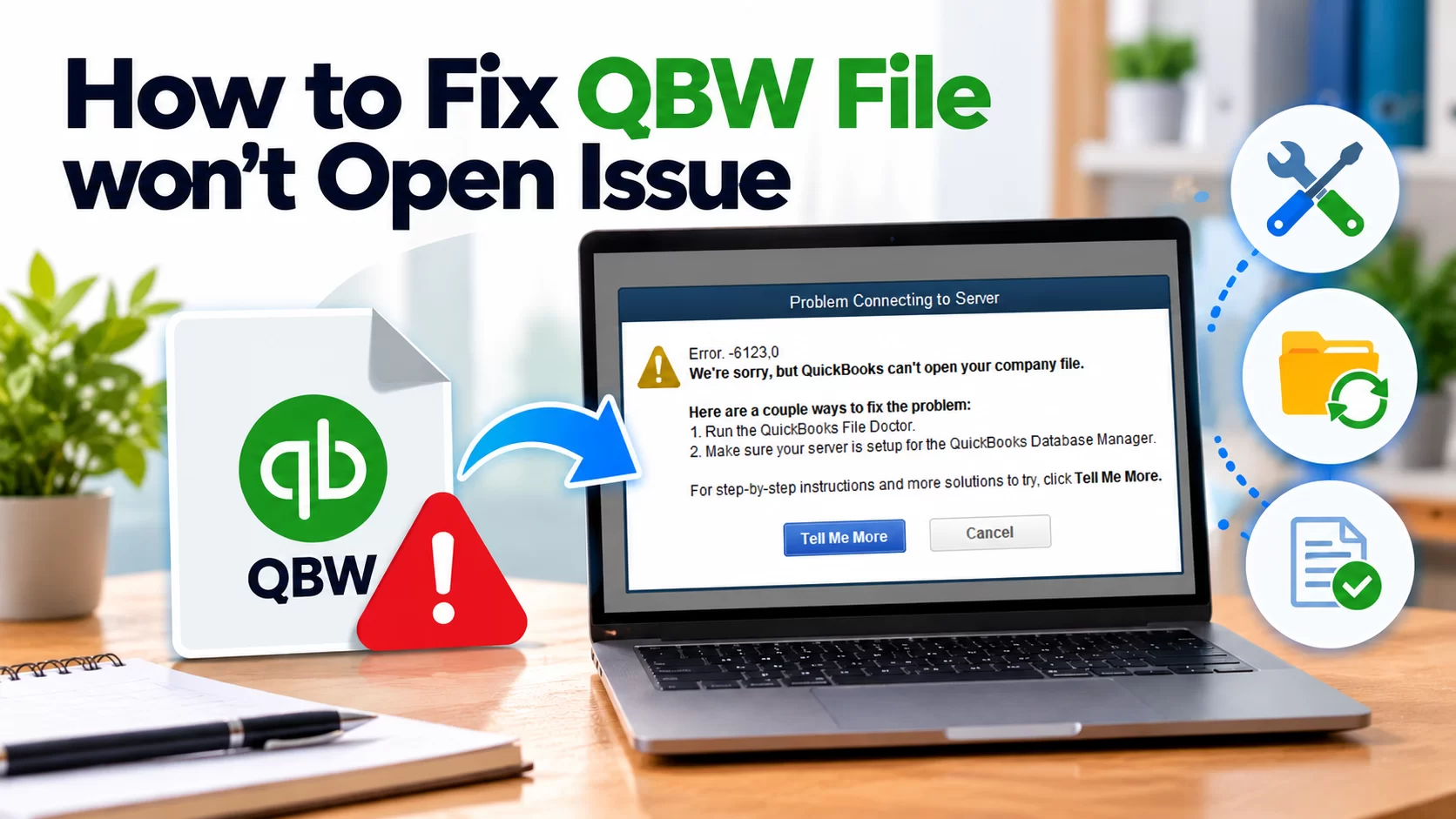
Sometimes, you face a situation where your QuickBooks Company (QBW) file fails to open. You usually face this situation when you try to access the file after updates or a sudden application crash. The major reason behind this issue is corruption in the QBW file but there are other factors that can also cause it. This article will discuss the troubleshooting methods to resolve the QuickBooks company file won’t open issue.
QBW File won’t Open Issue – Possible Causes
You may fail to open QuickBooks company file due to one of the following reasons:
- Corruption in the QBW file.
- Damaged or corrupted QuickBooks installation files.
- Incorrect file format or extension.
- An outdated QuickBooks application.
- The company file you’re trying to open has been moved from its original saved location.
- Insufficient permissions for the folder where the file is stored.
- Hosting settings are incorrect if you are trying to open QBW file in a network environment.
Resolve QBW File won’t Open Issue: 5 Easy Solutions
You may fail to open the company file if the version of your QuickBooks application is outdated. To check this, open the Product Information window in the application by pressing F2 key. If it is not updated, then click Install Now to install the latest updates. Also, make sure your file is saved in the correct file format (.QBW). If these basic troubleshooting steps didn’t work for you, then follow these solutions.
1: Move the Company File
If your QuickBooks company file won’t open, then it is typically due to an issue with the path or location where the file is stored. To check this, follow these steps:
Note: If you share your company file on a network, first make sure everyone is signed out.
- Open File Explorer window on your system.
- Find the company file folder, right-click on it, and select Copy.
- Next, right-click anywhere on your Desktop and click Paste.
- Open QuickBooks, click File and choose Open or restore company.
- Select the company file you copied on the Desktop and click Open.
- If you’re able to open the company file, it clears that the file location is the issue. To resolve this, you can try moving your company file to a new folder. If you’re sharing your file on a network, then share the new folder.
2: Check Folder Permissions
The “QBW file won’t open” issue can also occur when you try to open the company file folder with insufficient permissions. You can check and change the folder permissions by followings these steps:
- Go to the company file folder, right-click on it, and then clickProperties.
- In thePropertieswindow, clickSecurityand select the user (who is facing the issue).
- Then, check theFile permissions. Make sure you have the following permissions:
- Full Control
- Modify
- Read
- Read & execute
If the permissions are not assigned, click Edit and then check the fields under the Allow section to provide the permissions.
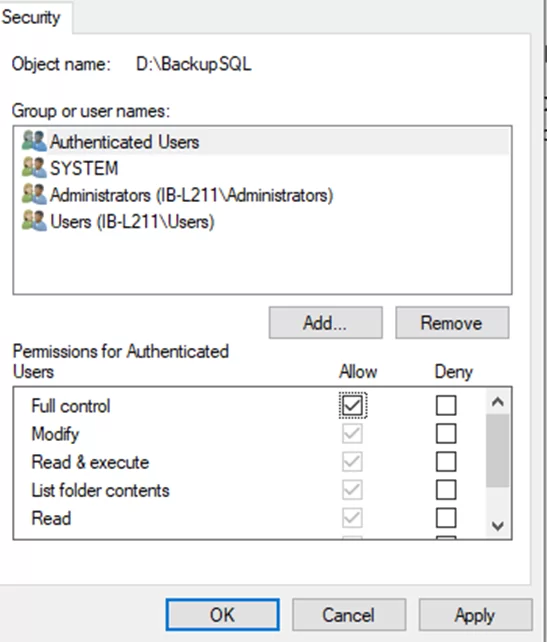
ClickApplyand then clickOK.
3: Check and Modify Hosting Settings
If you fail to open the company file on a network, it means there is some issue with the hosting settings. These settings should be enabled only on a server system. If these settings are enabled on the workstation, it can lead to the “QuickBooks company file not opening” issue in a multi-user environment. To resolve this, you can check and make sure Stop Hosting Multi-user Access is enabled on the workstation. Here’s how:
- On your workstation, open the QuickBooks application.
- Click File and then select Utilities.
- Click Stop Hosting Multi-user Access.
- Click Yes.
Repeat the same steps for changing the Hosting settings on other workstations. If the issue persists, then you can also check the Hosting settings on the server system. The Host Multi-user Access option must be selected on it.
4: Use QuickBooks Tool Hub
If you fail to open the QBW file while launching the application, this might be due to corrupt QuickBooks installation files. To repair such files, you can download and launch the free QuickBooks Tool hub. In the tool hub, use the QuickBooks Install Diagnostic Tool by following these steps:
- In tool hub, click Installation Issues.
- Click QuickBooks Install Diagnostic Tool.
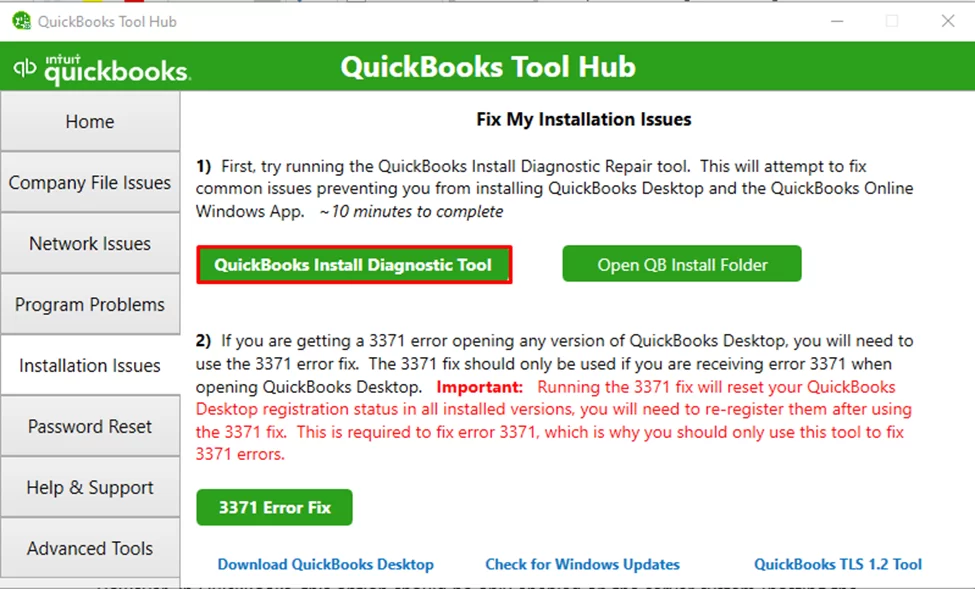
- It will start scanning and repairing the installation files.
- Once the tool completes the process, restart your system and application. Then, try to open the QBW file.
5: Repair your Company File
A damaged company file is also one of the primary reasons behind the “QBW won’t open” issue. If you have backup (QBB) file, then you can restore your company file using Auto Data Recovery. Alternatively, you can restore the backup file by using the following steps:
- In QuickBooks, click File > Open or Restore Company.
- Click the Local Backup option and then select Next.
- Browse to the location of your backup company file (.qbb).
- Select a location to save the restored file and click Open.
If the backup is not available or is corrupted, then use QuickBooks’s built-in tool – Verify and Rebuild Data – to rebuild company file data. Here’s how to use it:
- In your QuickBooks application, click File > Utilities.
- Select Rebuild Data.
- TheQuickBooks Informationwindow is displayed. ClickOK.
- You will be prompted to create a backup of the company file. Follow the instructions on the screen to create a backup.
- Once the backup process is completed, the tool starts rebuilding the file. Wait till the process is complete. Then, clickOK.
Now, verify if there are any remaining issues in company file. For this, run the Verify Data tool by following these steps:
- In QuickBooks, go to theFilemenu.
- ClickUtilities > Verify Data.
The tool will start verifying the data for any issues.If it doesn’t detect any problem, clickOK. If it displays any issue, then you can try QuickBooks File Doctor tool in QuickBooks tool hub. You should have admin credentials to use it. Also, it has some file size limitations and may not repair highly corrupt QBW files.
If all QuickBooks repair methods fail to repair company file, then use an advanced QuickBooks repair tool, like Stellar Repair for QuickBooks. It can easily repair highly corrupted QuickBooks company file with complete precision. Also, it has no file size restriction. It supports QuickBooks Pro, Premier, and Enterprise versions.
Conclusion
QBW file may fail to open due to various reasons. First, try the basic workarounds like checking the QuickBooks version updates and QBW file format, and then follow the solutions mentioned above to resolve the issue. If corruption in the company file is preventing you from accessing it, use the Verify and Rebuild utility or file doctor tool. If the file is severely corrupted, then you can use the advanced QuickBooks file repair tool—Stellar Repair for QuickBooks. It can repair highly corrupted company (QBW) files. Also, it helps fix complex corruption-related errors in QuickBooks.