Hello My Dear Readers, Today in this post I am going to explain the topic that is the most important in the field of digital marketing. If you are selling your products and service over the website, then this process help you a lot. I am talking about Google Analytics. For any kind of business owners and other kind of entrepreneurs it’s importance to track the data which is very close to his business, it could be location base, it could be age base, device, time and many kinds of. So lets know about the process that how to how to set up google tag manager in wordpress.
Option 1: Install with Tag Assistant Chrome extension
Install the Tag Assistant Chrome extension for a quick, easy, and guided installation of your Google tag. link
Option 2: Install manually with WordPress
Copy your tag ID G-BQ97L484JZ
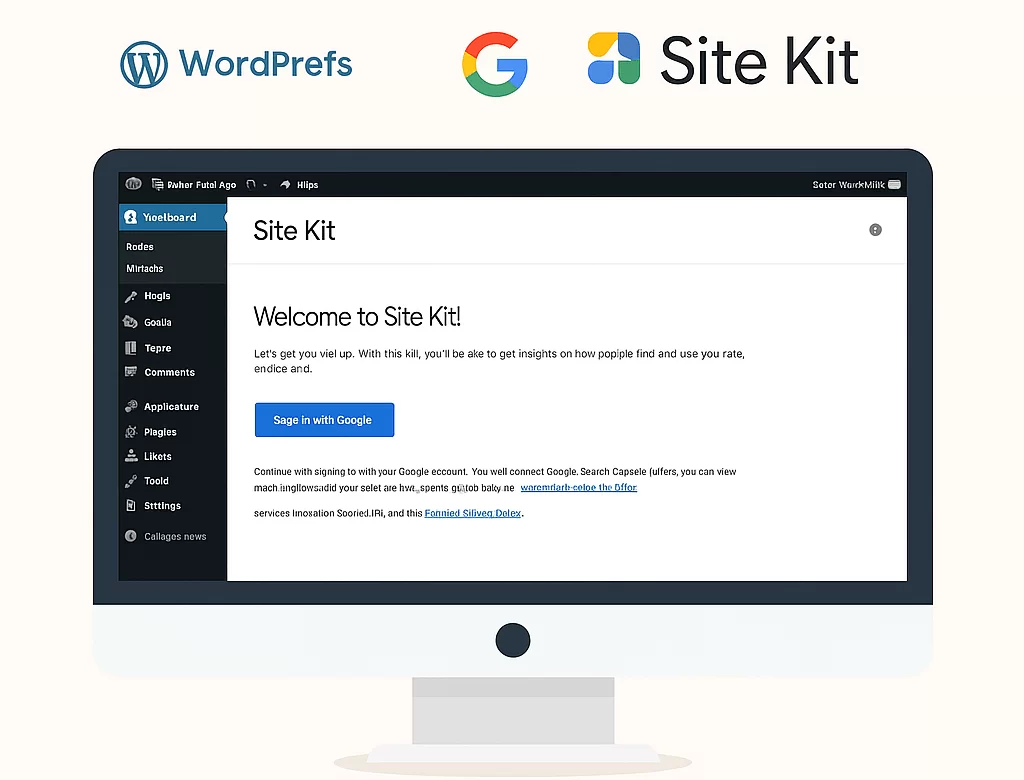
Set up your Google tag on WordPress with Site Kit
- Log in to your WordPress website. Make sure that your site is publicly accessible (your site isn’t in maintenance mode or only accessible through a password).
- Note:If you are unable to install plugins on your WordPress account, follow these steps to Set up your Google tag with WordPress Editor.
- Follow steps 3-14 to download and install the “Site Kit by Google” plugin, which is free to use. If you have already have Site Kit, go to step 15.
- In the navigation menu on the left, clickPlugins.
- ClickAdd Newat the top of the “Plugins” page, then search for “Site Kit”.
- ClickInstall Nowon the Site Kit by Google

- Once the plugin is installed, from the menu on the left, clickPlugins.
- Under “Site Kit by Google”, clickActivate.
- Once the plugin is activated, on the left-hand side, clickSite Kit.
- Check the box “Connect Google Analytics as part of your setup”.
- ClickSign in with Google
- Select the Google Account with an existing Google Analytics property.
- After you grant permission, clickProceedto verify site ownership.
- ClickAllowto grant access to Google account data.
- ClickAdd siteto add the site to Search Console.
- ClickSet up Google Analytics.
- Choose your pre-existing analytics property, then clickComplete Setup.
Test your website (optional):